Tables
Put names at tables
Say how many tables there are and how many sit at each, then let Fill tables deal the names out, or seat each one yourself. Lock a table once it is right.
How many tables
On Tables, under How many tables, set Tables and At each table.
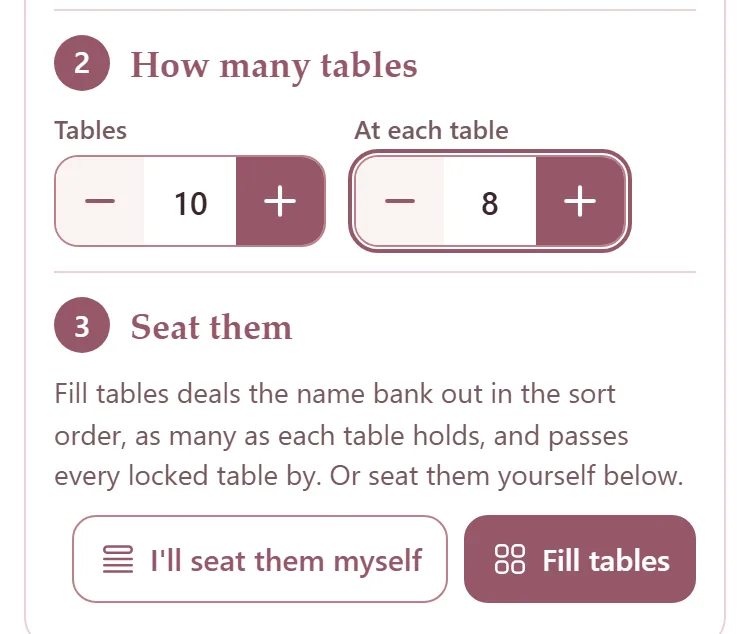
Tables is the same number as on the seating chart: one card for each table.
Fill the tables
Press Sort at the top to choose the order: first name or last name, A to Z or Z to A, or as added. Fill tables deals the names out in that order.
Under Seat them, press Fill tables. Each table gets as many names as it holds, and every locked table is passed by.
The steps fold away and the tables are under Who sits where. The list button at the top brings the steps back.
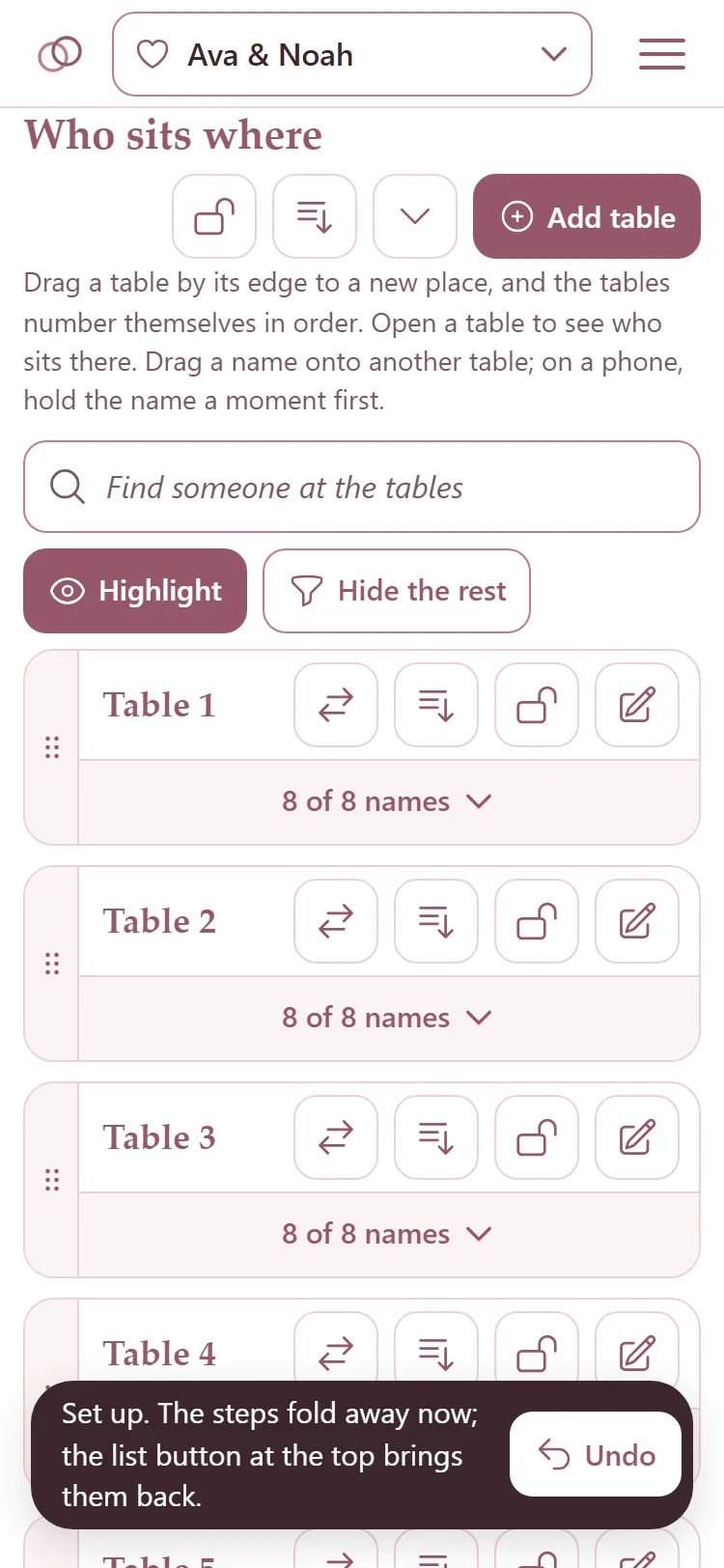
Or press I'll seat them myself to fold the steps away and seat everyone by hand.
Seat names by hand
In the Name bank, tick the names to move. A bar says how many are chosen.
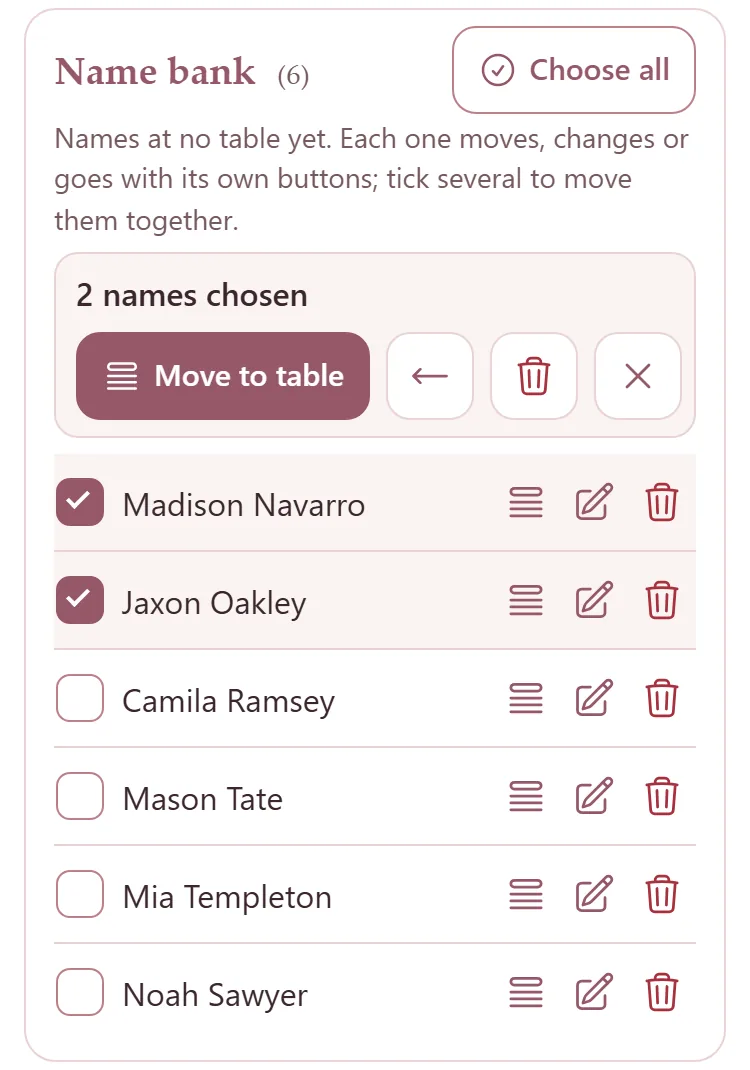
Press Move to table and tap the table. Each table says how many it has and how many it holds.
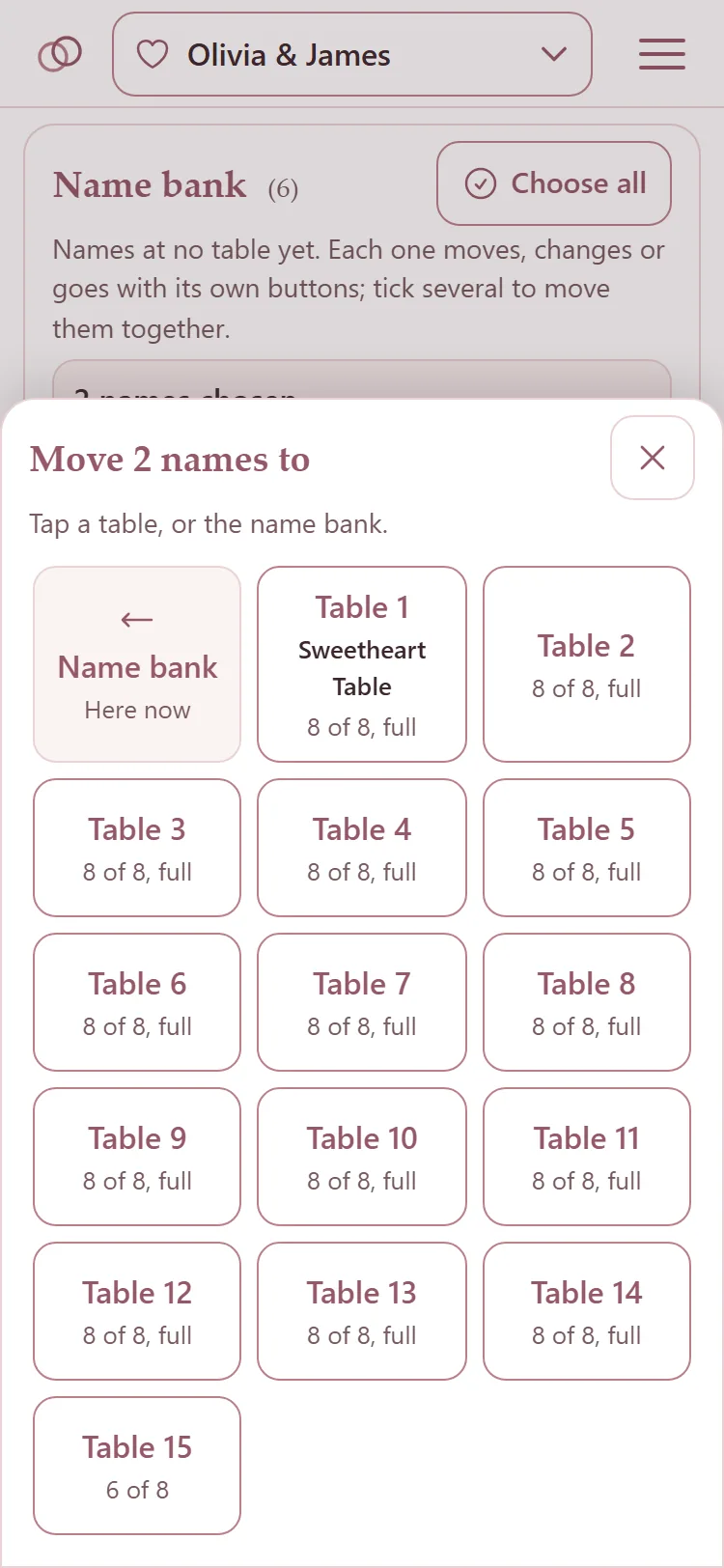
To move one name, press the lines button beside it. Or, with names ticked, press Put here on a table.
On a phone you can also hold a name a moment, then drag it onto a table. On a computer, just drag it.
Tap a table's count, like 8 of 8 names, to open it. The arrows change the order of the names on the card, and Add a person adds someone straight to that table.
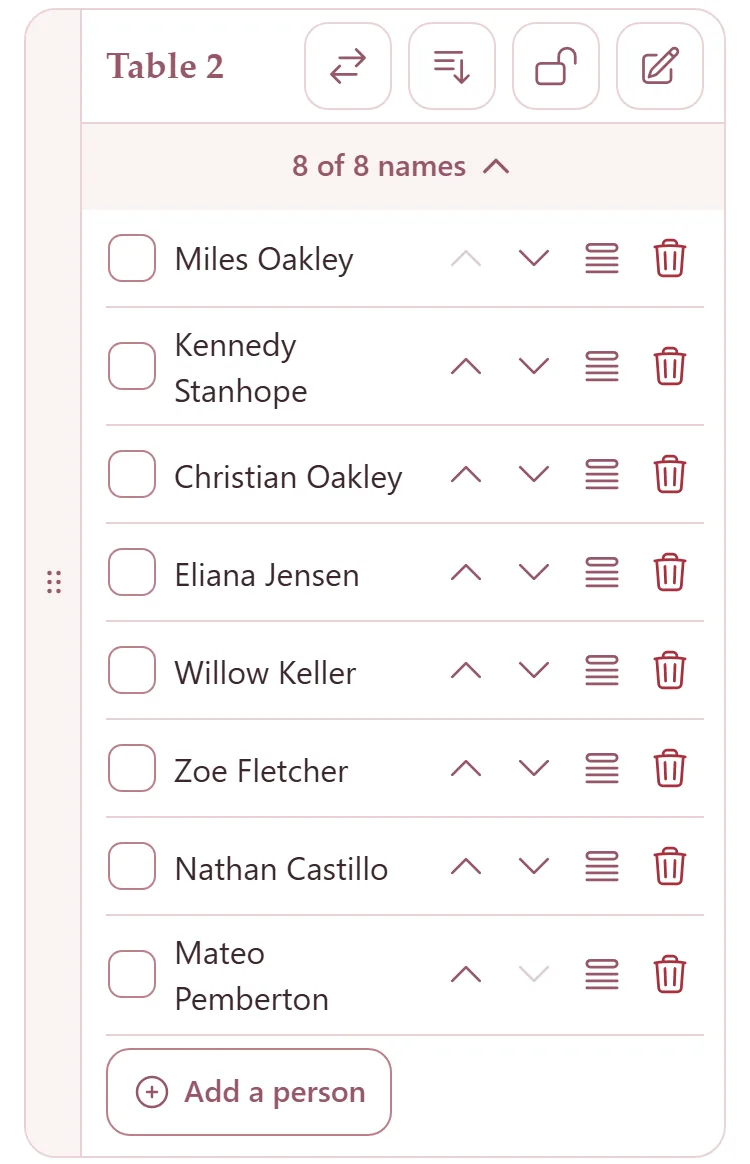
Lock a table
Press the lock on a table once it is right. A locked table keeps its number and its names: Fill tables, Start over and sorting pass it by, and nobody can be moved on or off it.
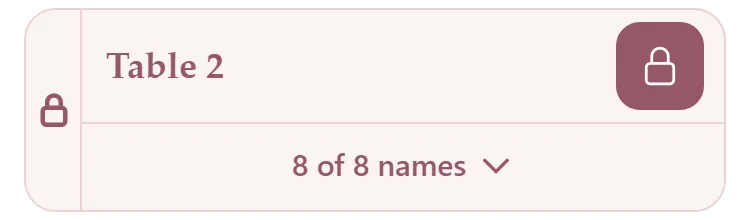
Press the lock again to unlock it. The lock at the top of Who sits where locks or unlocks every table at once.
Undo a change
After each change, a bar at the foot of the page says what happened. Press Undo on it to put things back.
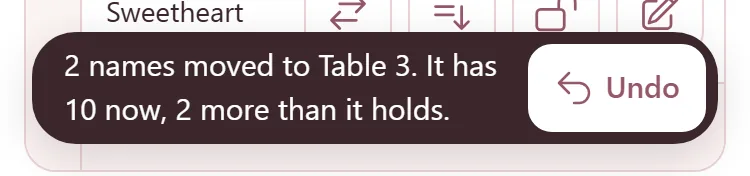
The bar goes after a few seconds. On a computer, Ctrl+Z (Cmd+Z on a Mac) undoes the last change, and pressed again, the one before.
To start again, press the list button at the top, then Start over, then Sure? Clear the tables. Everyone at a table that is not locked goes back to the name bank.
More on the Tables page
- Add table makes a new table, with a name if it has one (like Head table), how many sit at it, and who.
- The pencil on a table changes its name or number. The arrows button swaps it with another table: everyone trades places, its name and size too.
- Drag a table by its edge to a new place, and the tables number themselves in order.
- Find someone at the tables finds a guest. Highlight marks where they sit; Hide the rest shows only the tables they are at.
- A table can hold more than it should. The bar says so, like "It has 10 now, 2 more than it holds."