Print the table cards
The Print page puts every table's card on the fewest sheets of cardstock, with marks to cut by, ready for your printer.
Set up the sheets
Open Print from the menu, or press Print at the top of Card design.
Under Cardstock, pick the Sheet: Letter, Legal, 11 x 17, A4, 12 x 12 or 13 x 19.
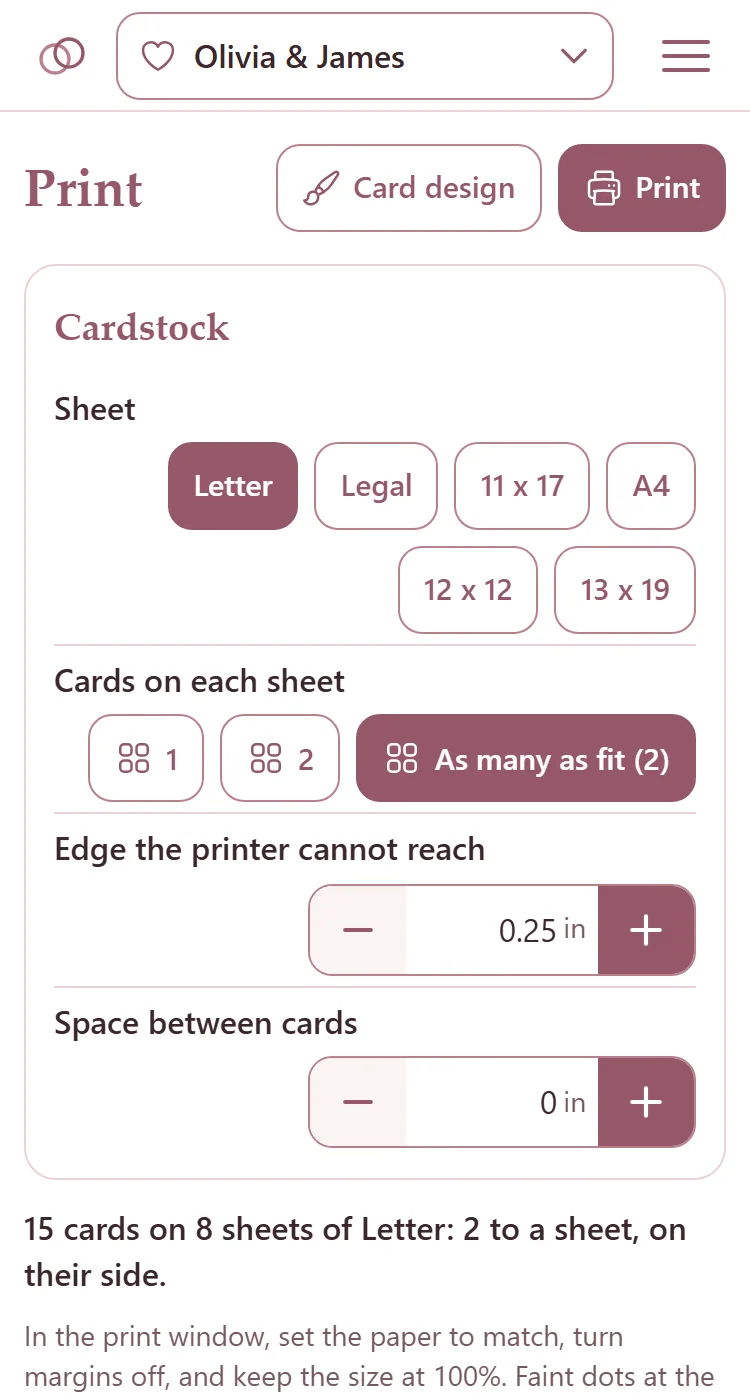
Cards on each sheet: 1, 2, or As many as fit. The cards turn on their side when more fit that way.
Edge the printer cannot reach keeps the cards off the strip at the paper's edge your printer leaves blank. Space between cards puts a gap between them.
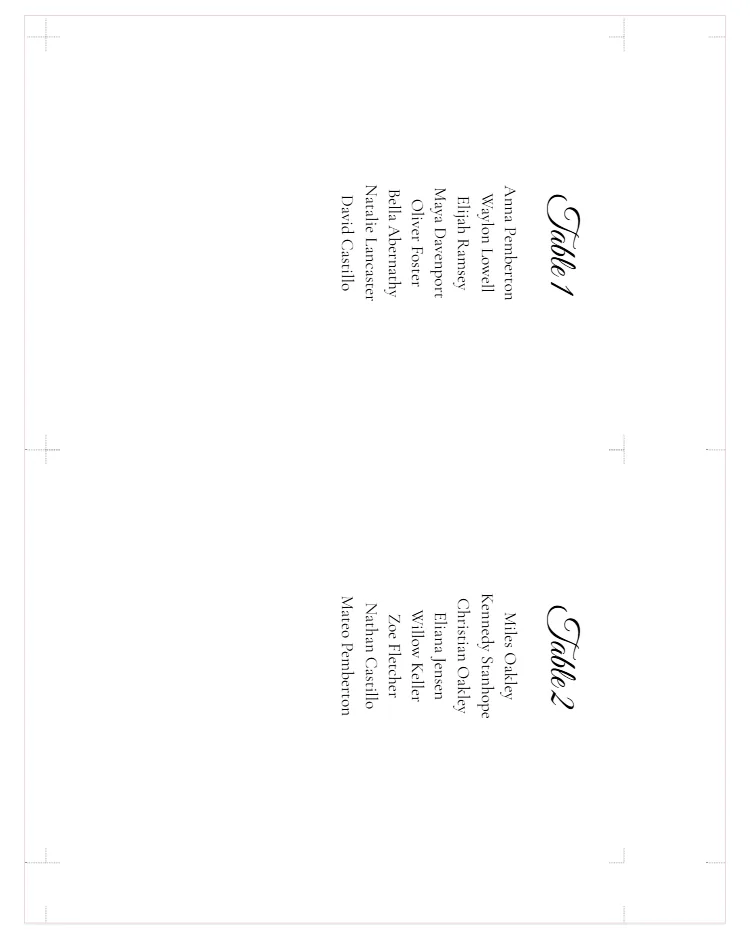
The line under the choices says how many cards on how many sheets, like "15 cards on 8 sheets of Letter: 2 to a sheet, on their side." The sheets are drawn under it.
Print them
Press Print at the top.
In the print window, set the paper to match, turn margins off, and keep the size at 100%.
Cut by the faint dots at the edges of each sheet and at every card's corners. Each strip keeps its marks for the next cut.
How the card looks is set on Card design, and its size on the seating chart.