Seating chart
Set up a seating chart for a mirror
Type the mirror's card area, how many tables and the size of a card. The page draws the mirror to scale with every card evenly spaced, and says where each one goes by tape measure.
The mirror
Open Seating chart from the menu.
Under Mirror, set the Width and Height of the card area: the part of the glass the cards can go on, not the frame.
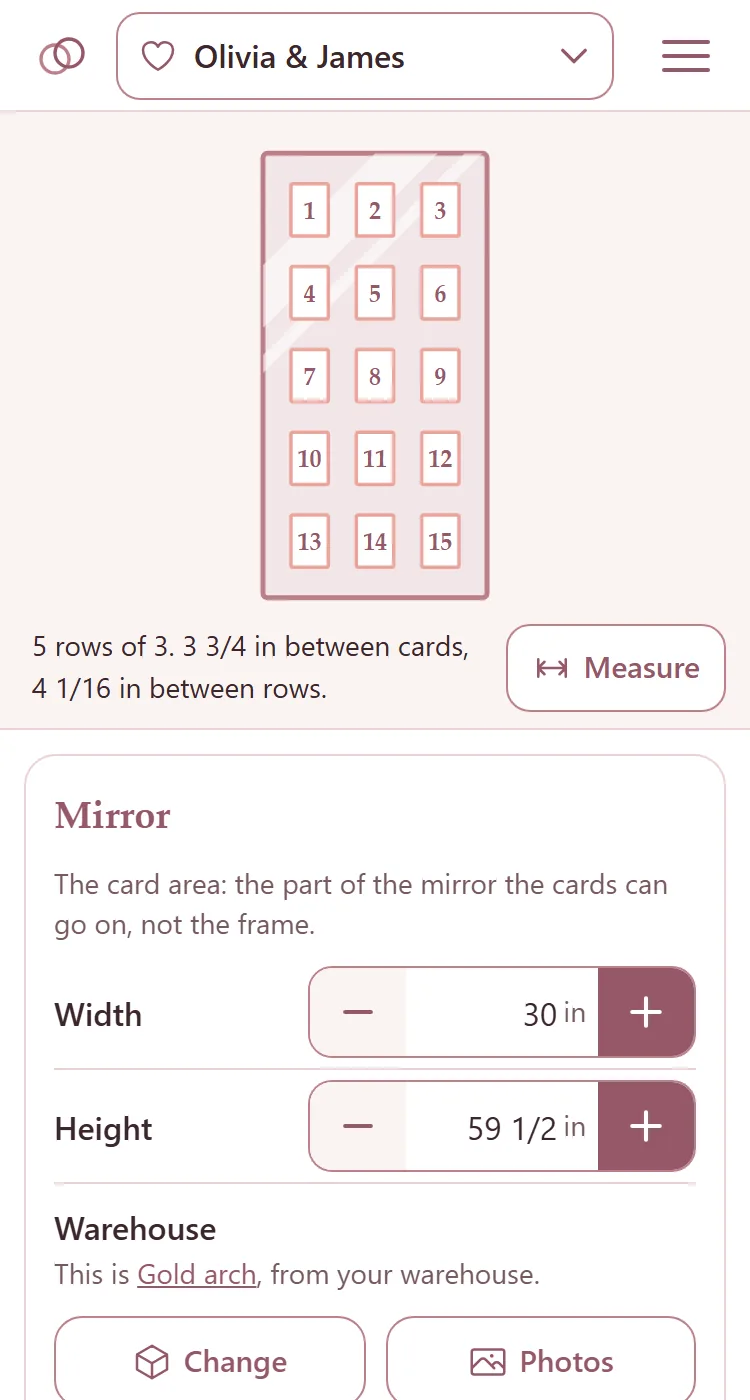
Press minus or plus to change a number a step at a time, and hold it down to keep going. Or tap the box between them and type.
If the mirror is in your warehouse, press Choose under Warehouse and tap it. Its card area comes with it. More in Keep your mirrors in the warehouse.
Type inches the way you say them: 23.5, 23 1/2, 23-1/2" and 2' 6" all work. The page shows them to the nearest sixteenth, the way a tape measure reads.
The cards
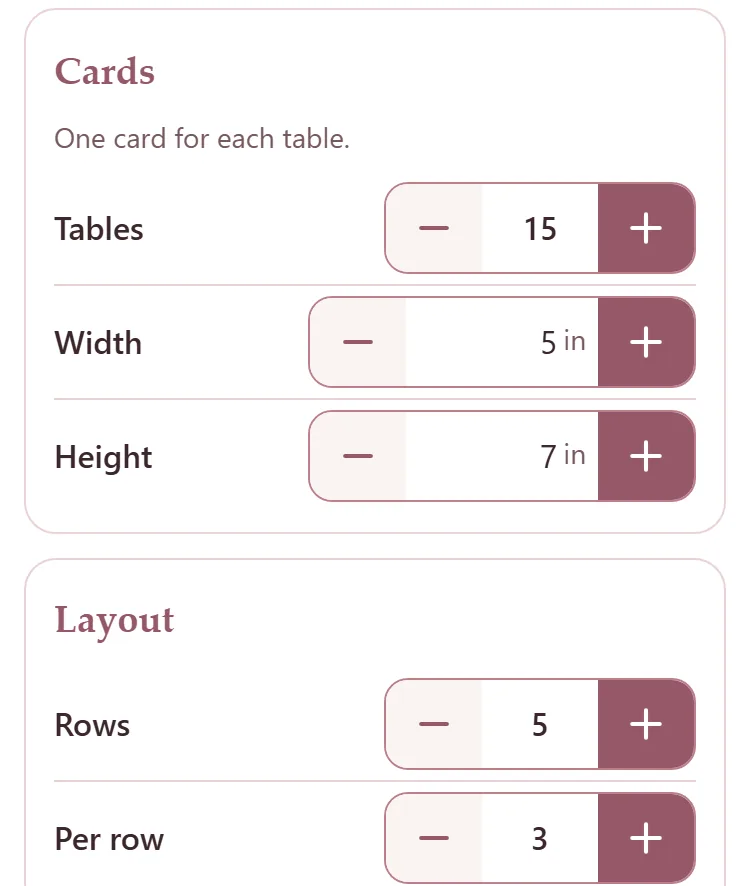
Under Cards, set Tables. One card goes on the mirror for each table.
Set the card's Width and Height.
The drawing at the top shows every card on the mirror, and the line under it says how they sit, like "5 rows of 3. 3 3/4 in between cards, 4 1/16 in between rows."
Rows, and how many to a row
Left alone, Per row is the best fit: of the shapes that fit, the one whose space across is closest to its space down.
Press minus or plus on Rows to try another number of rows. It only stops on numbers the cards can make: 10 cards cannot make 6 rows.
Or set Per row yourself. Best fit then shows beside Layout; press it to go back.
Rows are full but for the last, which is centered with the same space between its cards as the rows above.
The space at the edges
Left empty, an edge's space is even: the same as the space between two cards. The box shows it in grey.
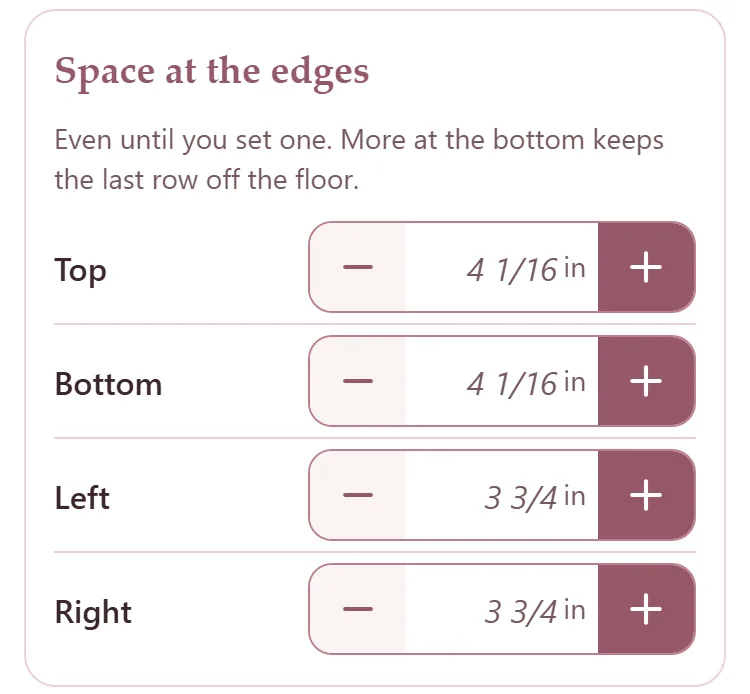
Set an edge yourself, like more at the bottom to keep the last row off the floor. That edge stays put and everything else spreads evenly in what is left.
Empty a box to make that edge even again, or press Even to empty all four.
Measure it on the mirror
Press Measure under the drawing, or press the drawing. It opens large with the inches written where they are measured: the space at each edge, between two cards and between two rows.
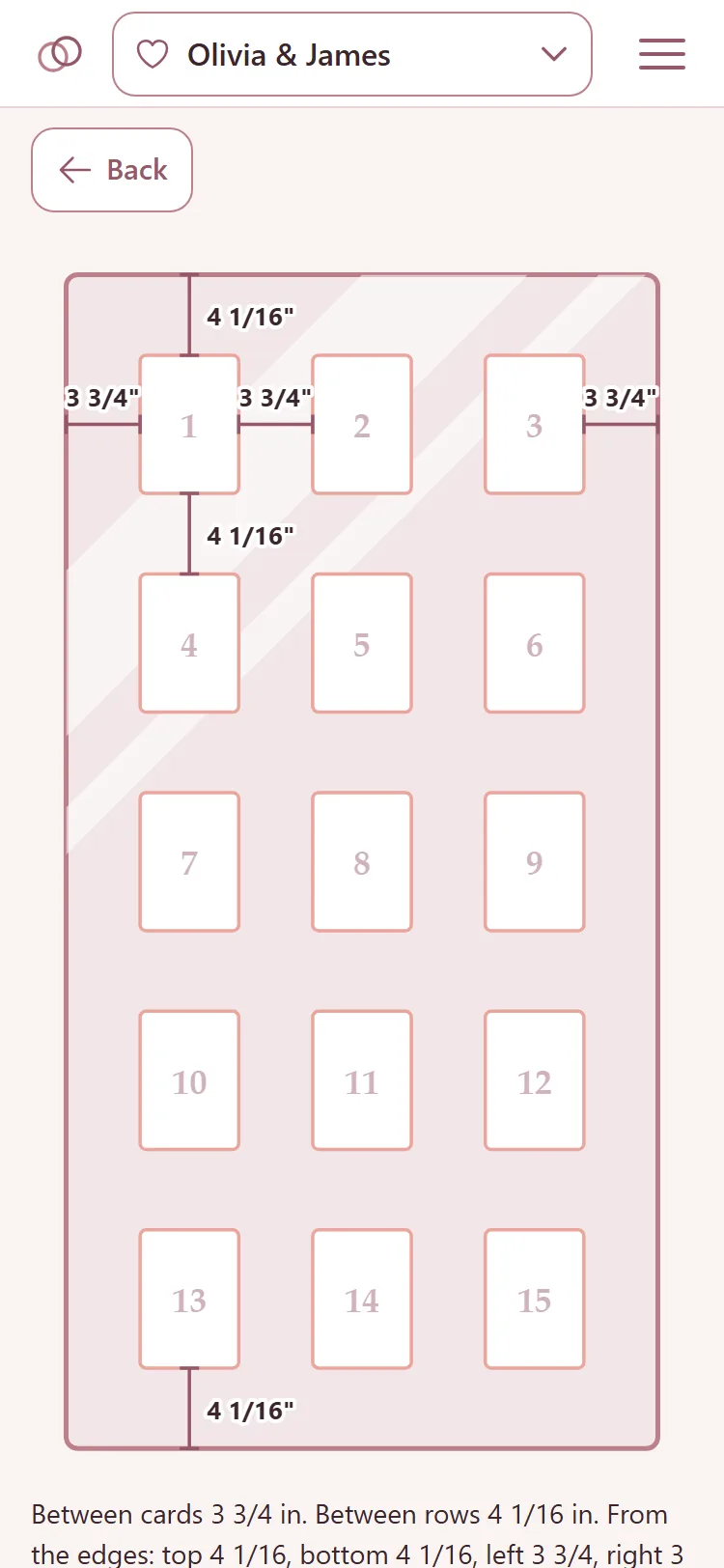
Press Back to close it.
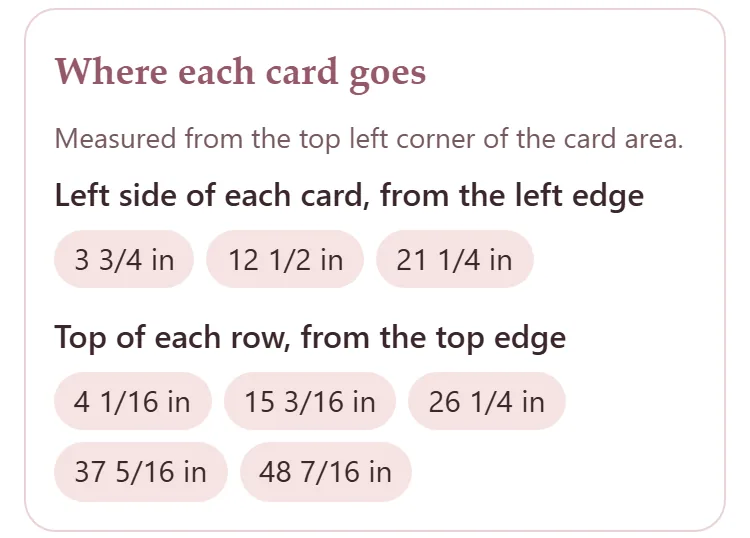
Further down, Where each card goes lists every measurement from the top left corner of the card area: the left side of each card from the left edge, and the top of each row from the top edge. Read them off against a tape measure.
Saving, and cards that do not fit
The chart saves itself a moment after every change and says Saved quietly. There is no Save button.
Cards that cannot fit are still drawn, overlapping and dashed, and the line under the drawing says what they need, what there is, and what would fix it: less space at the edges, smaller cards or fewer tables.